OBD Dash

Extra gauges for a car that doesn't have them, on an Android phone.

Your car measures far more than its dashboard shows. A small adapter plugs into a socket under the steering wheel, your phone reads what the car reports over Bluetooth, and this app displays it — temperatures, voltage, fuel economy, and a plain-English explanation of any warning light.

The app can record every drive on its own. There is no account to make and nothing is collected about you.

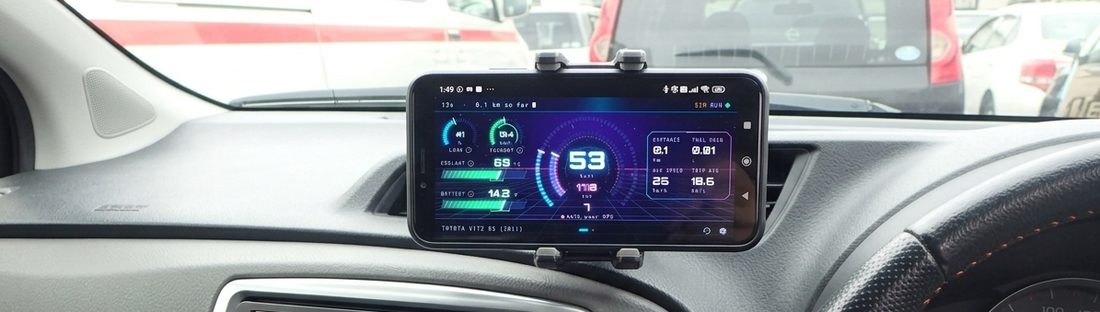
The cockpit in the Neon Horizon theme on a phone mounted to a car dashboard
The cockpit in its Neon Horizon theme, sideways on a vent mount. Portrait works just as well.

What you need

An Android phone

Version 12 or newer.

An OBD2 adapter

Bluetooth, sold everywhere. The inexpensive ones mostly work fine.

A car built since ~2001

Almost all of them have the socket this uses.


Getting started
1

Plug in the adapter

The socket is under the dashboard on the driver's side, usually near your knees.

2

Pair it once

In your phone's own Bluetooth settings. If it asks for a PIN, it is nearly always 1234 or 0000.

3

Choose it in the app

Settings, then Adapter, and pick it from the paired list. Not listed? Pair it in your phone's Bluetooth settings first, then tap Refresh paired.

Small circled i marks, everywhere in the app

Tap one and the app explains what that reading is and what a healthy value looks like. They sit on every reading that isn't obvious, so nothing here needs prior knowledge of engines. The Terminal theme marks the same readings with a dotted underline instead.

The cockpit

Everything on one screen. Nothing needs a tap while moving.

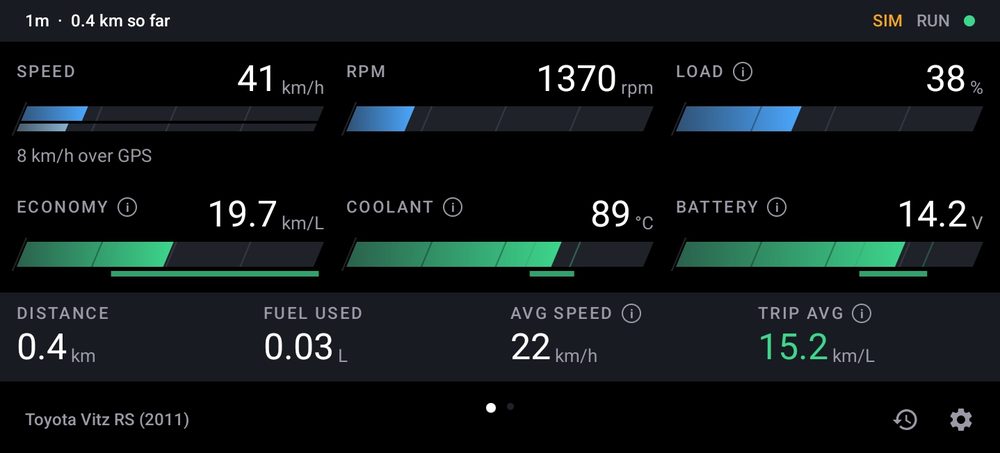
Speed, revs, load, economy, coolant and battery on one panel, with the drive's totals underneath. It turns sideways with the phone, and one swipe brings up Diagnostics. Pick its look in Settings, under Theme.

Cockpit in the Standard theme

Standard

Plain figures and bars, the clearest at a distance.

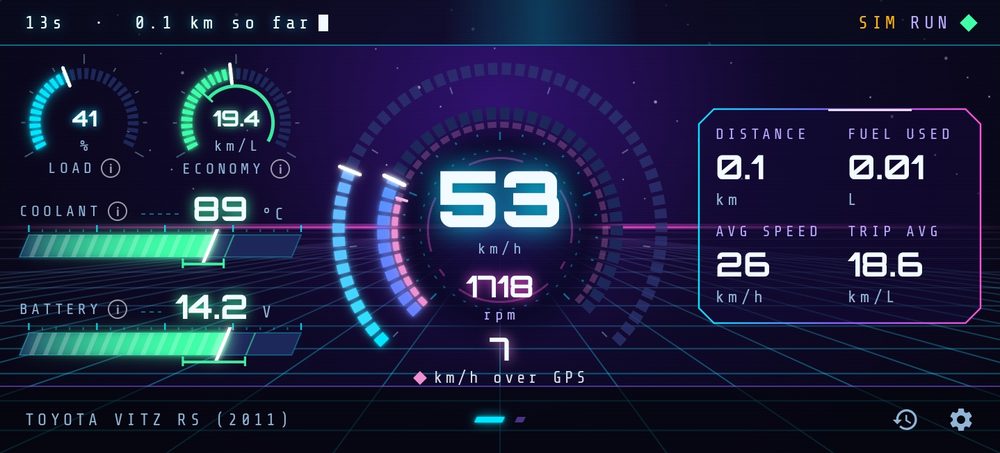
Cockpit in the Neon Horizon theme

Neon Horizon

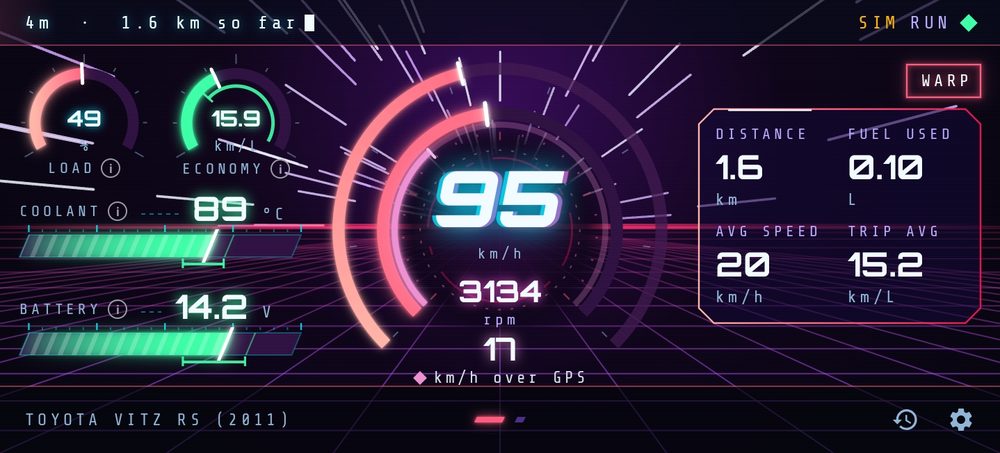
Glowing dials; speed and revs share one.

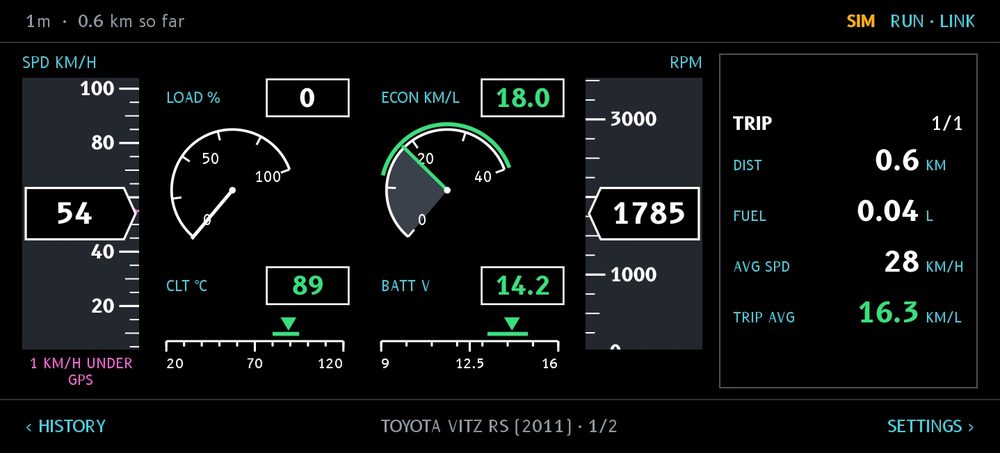
Cockpit in the Flight Deck theme

Flight Deck

Aircraft tapes for speed and revs.

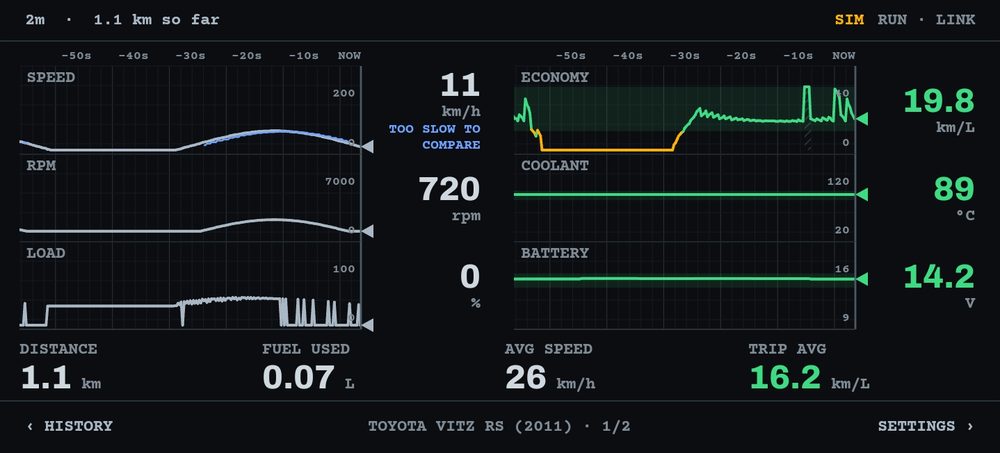
Cockpit in the Chart Recorder theme

Chart Recorder

The last minute of each reading, as a trace.

Cockpit in the Terminal theme

Terminal

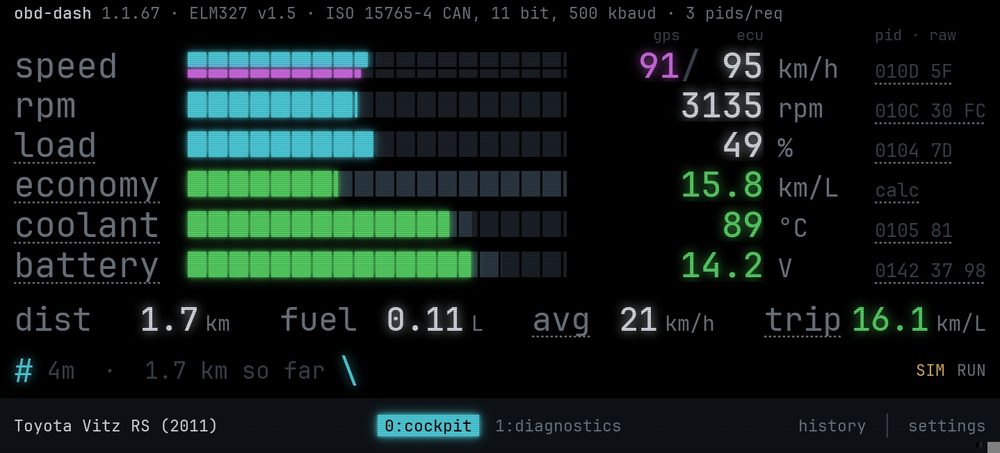
Each reading beside the PID it came from; tap a PID for what it is.

Cockpit in the Recall theme

Recall

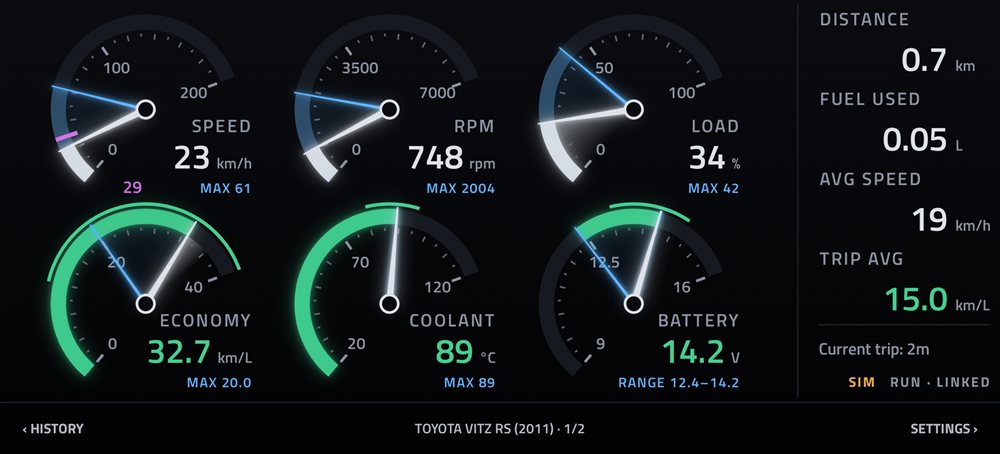
Each dial keeps the drive's highest in blue, and the battery its range.

Cockpit in the Blueprint theme

Blueprint

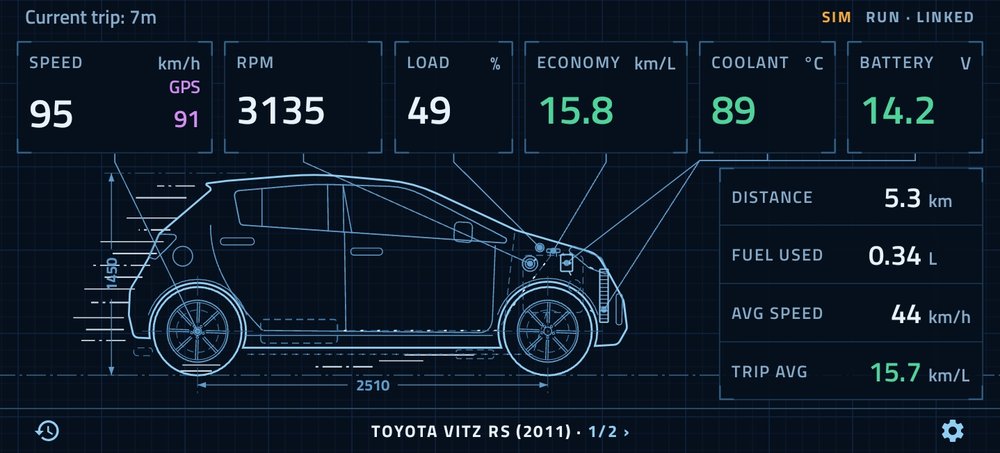
The car as an engineering drawing, each reading joined to the part it is about.

Neon Horizon in warp

Warp

Neon Horizon on a hard pull or a steady cruise.


The status strip

Always there: whether the phone has the car, whether the engine is running, and whether the check engine light is on. Most themes keep it along the top; Terminal keeps it at the foot, as a prompt, and Recall under the trip figures.

Anything serious takes it over, pulls you back to the dashboard and chimes: twice for overheating or a charging voltage that is too high, once for a check engine light. Silent mode is respected. A battery that is not being charged shows in amber without a chime; the car's own battery light is the alarm for that.

Reading it at a glance

Every theme is dark, so the screen does not light up the cabin at night. Green means a reading is where it should be, amber worth a look, red stop.

By default the display stays awake while the engine runs. It is a switch; see Setting it up, and living with it.

No adapter yet? Settings has a Simulated drive that runs every screen with no adapter and no car, and stays out of your real trip history.

After the drive

Every drive is saved, and a slow change shows up in the charts.

History

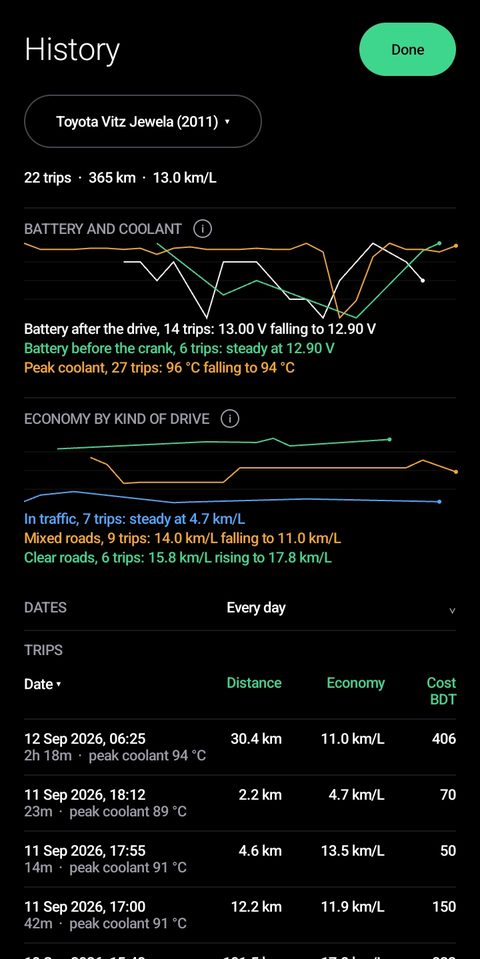
Reached from the clock icon in the dashboard footer. Every drive is listed with distance, economy and fuel cost.

The two charts show what no single drive can. Battery voltage drifting down over weeks, or peak coolant drifting up, is worth looking into. Neither shows up in one reading, only as a trend.

The second keeps economy in traffic apart from economy on the open road. Economy moves with weather, traffic and how you drive, so compare it over weeks rather than reading one figure as a verdict on the engine.

History screen

It survives a new phone

Export, on the History screen, saves your history to a file — with more than one car, tick every car to take them all — and Import on the new phone reads it back in. Or turn on Back up history to Google Drive: sign in once on each phone and every drive, car and cost stays in step.


One drive in detail

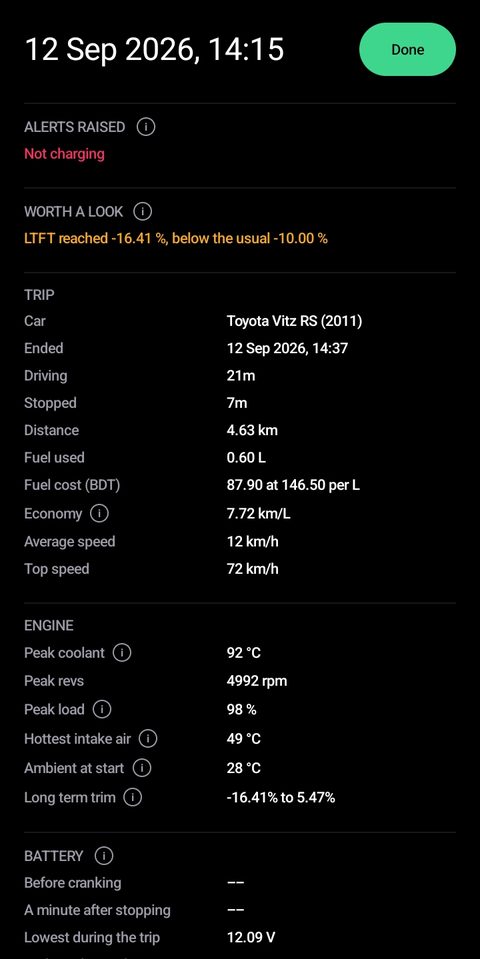
Tap any trip for what it cost, time moving versus stopped, the hottest the engine got, the highest speed and the lowest the battery dropped.

Alerts raised lists anything that went wrong, even briefly — a charging fault that came and went is something you would otherwise never know about. Worth a look is gentler: a reading outside its usual range, without being a fault.

Trip detail

More than one car

Cars are added and chosen in Settings, under Car. The name at the top of History narrows the list to one car, and its charts and costs follow.

A drive saved under the wrong car can be opened and sent across with Move to another car, or deleted from there. Deleting a car takes its trips with it.

Warnings, faults and inspections

A warning light tells you something is wrong, the app tells you what.

Fault codes, in plain English

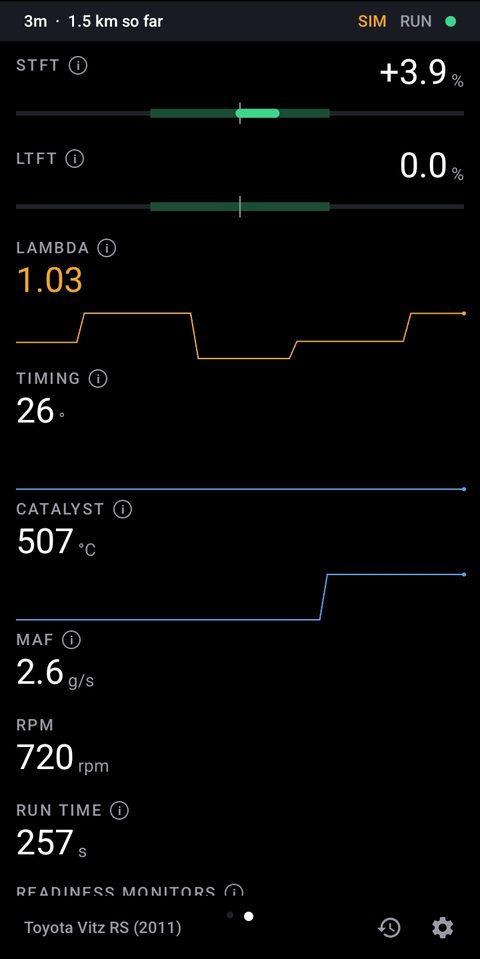
When the check engine light comes on, the car has stored a code explaining why. Tap Read on Diagnostics and you get it as a sentence, not the five-character number a cheap code reader gives you.

The car also keeps a snapshot of what the engine was doing when the fault was recorded, and Read shows it under Freeze frame. The same code at cold idle and at motorway speed often points somewhere different, and the snapshot is what a mechanic will want to see.

Diagnostics screen

Diagnostics, with every self-test passed and no stored faults.


Before you clear a warning light

The app can clear a stored fault, behind a confirmation. Clearing fixes nothing — if the cause remains, the car records it again, often within a day.

It also erases that snapshot and resets the car's emissions self-tests, so the car will fail an inspection until it has been driven enough to finish them. Diagnostics lists them and says whether you are ready. Useful after a repair; a bad idea the morning of an inspection.


If a reading is missing, or something isn't working

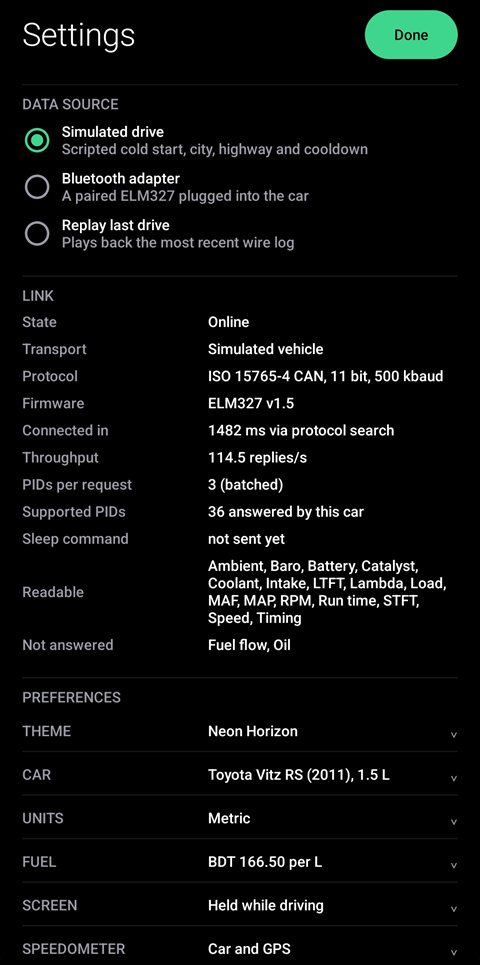
Settings reports what your car and adapter turned out to be capable of, including any readings your car doesn't provide — normal, and it varies by model. Share log files bundles the app's own records to be sent on; nothing identifying goes in them.

Fuel, costs and units

Tell the app what you pay per litre or gallon and every drive shows its cost. Metric or imperial changes only the display, never what is recorded. FUEL CUT in place of economy is normal: coasting, or a hybrid on its battery, burns nothing.

Setting it up, and living with it

Set up once and you can stop opening the app altogether.

It can start itself

Turn on Watch the car in the background and the app connects on its own, records the drive and lets go when you park. A notification shows what it is doing and can stop it.

Wake the screen when the engine starts is the more intrusive half: the dashboard appears over the lock screen by itself, once per drive. Keep the screen on while driving then holds it on while the engine runs, and hands it back to the phone's own timeout when you switch off.

Settings also offers Allow unrestricted battery use. Without it, Android checks on a parked car less often, so the app can take longer to notice you have set off.

How fast it notices depends on power. In a socket that switches off with the key, it wakes as you turn it. Otherwise allow a minute or two.

Settings screen

Settings: where readings come from, what this car reports, and the theme.

Switches only you can set

A few switches can't be set by the app itself. Find them for this app in your phone's Settings, under Apps. Turn off Pause app activity if unused: an app that runs on its own may go months without being opened, and Android would then take its permissions away.

Some phones add more of their own. Autostart lets it start watching again after a restart or an update. Show on lock screen and Open new windows while running in the background let it wake the screen.

Staying up to date

Installed from Google Play, the app keeps itself up to date. An update that lands mid-drive does not lose the trip: the app starts itself again, with Autostart on, and carries on recording.


Leaving the adapter plugged in

The socket has power even with the car off, so an adapter left in keeps drawing a little. Driving daily or every other day, that is fine. Leaving the car a week or more, unplug it — especially with an older battery.

Better adapters can be told to sleep, and the app asks yours to a couple of minutes after you switch off. Cheap ones ignore it. Settings tells you which kind yours is, under Sleep command.

Your data stays yours

No account, no server, no analytics. Nothing is sent anywhere unless you switch on Drive backup, and that goes to your Drive and nobody else's. Your car's VIN is never read and no location is recorded. The details are in the privacy policy.